Warehouse Inventory Management System in Sply24: A Complete Guide
In this guide, we'll show you how to use the warehouse inventory management system in Sply24. You'll learn how to create warehouses, import stock levels, synchronize inventory across multiple locations, and automatically deduct available stock when customers place orders.
Whether you manage a single warehouse or multiple locations, Sply24 helps you keep your product inventory organized and ensures that stock availability is accurately reflected in the ordering process.
As a B2B wholesale platform, Sply24 also provides tools for managing wholesale orders, product pricing, and customer access — all in one place.
Set Up Warehouses in Sply24
Before you can start managing warehouse inventory, you need to create warehouse records in your Sply24 account.
Log in to your company owner account, navigate to the Warehouses tab, and click Add Warehouse.
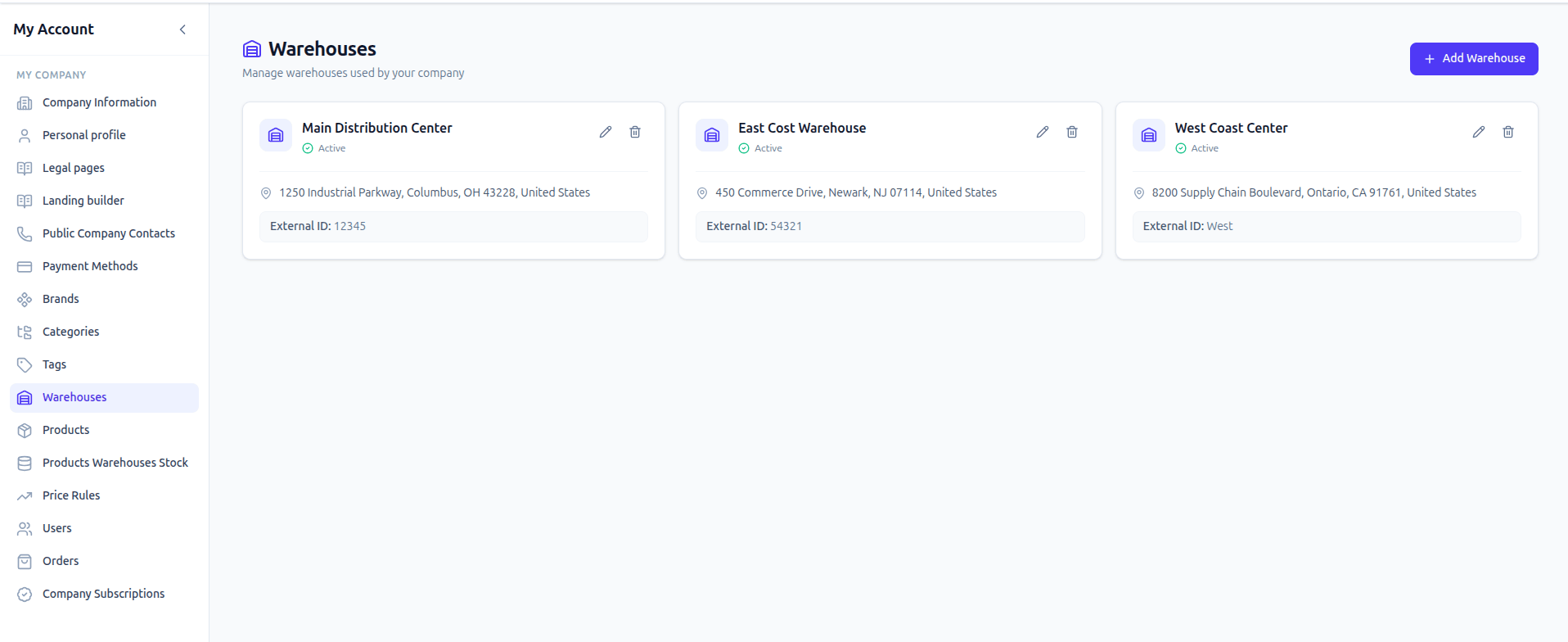
Each warehouse has three fields:
- Name
A clear and descriptive name that your customers can easily recognize when selecting a warehouse. - Address
The physical address of your warehouse. - External ID
A unique identifier assigned to this warehouse in your external inventory management system.
Important: How External ID works
The External ID is used to match incoming inventory data with the correct warehouse during synchronization. It must be unique for each warehouse. Warehouse names and addresses are visible to your customers, while the External ID is used internally and is not displayed to them.
Once your warehouses are created, you can start updating and managing their stock levels.
Choose a Warehouse Inventory Synchronization Method
Sply24 supports two methods for keeping warehouse inventory up to date:
Automatic Synchronization
Stock levels are synchronized with your external inventory management system.
Manual Synchronization
You upload a CSV or Excel file containing your current warehouse stock levels.
If you want to connect your existing inventory management system to Sply24, our specialists can configure the integration for you.
Simply contact us at support@sply24.com to discuss your requirements.
Free integration configuration: If you have a Professional plan or higher with a 12-month subscription, our specialists will configure your inventory system integration free of charge, according to the terms of your subscription.
If you prefer to manage stock updates yourself, you can use the manual import functionality described in the next section.
Import Warehouse Inventory Using CSV or Excel
Sply24 allows you to update stock levels across multiple warehouses by uploading a single CSV or Excel file.
To get started, navigate to the Products tab and open the Stock Sync import/export tab.
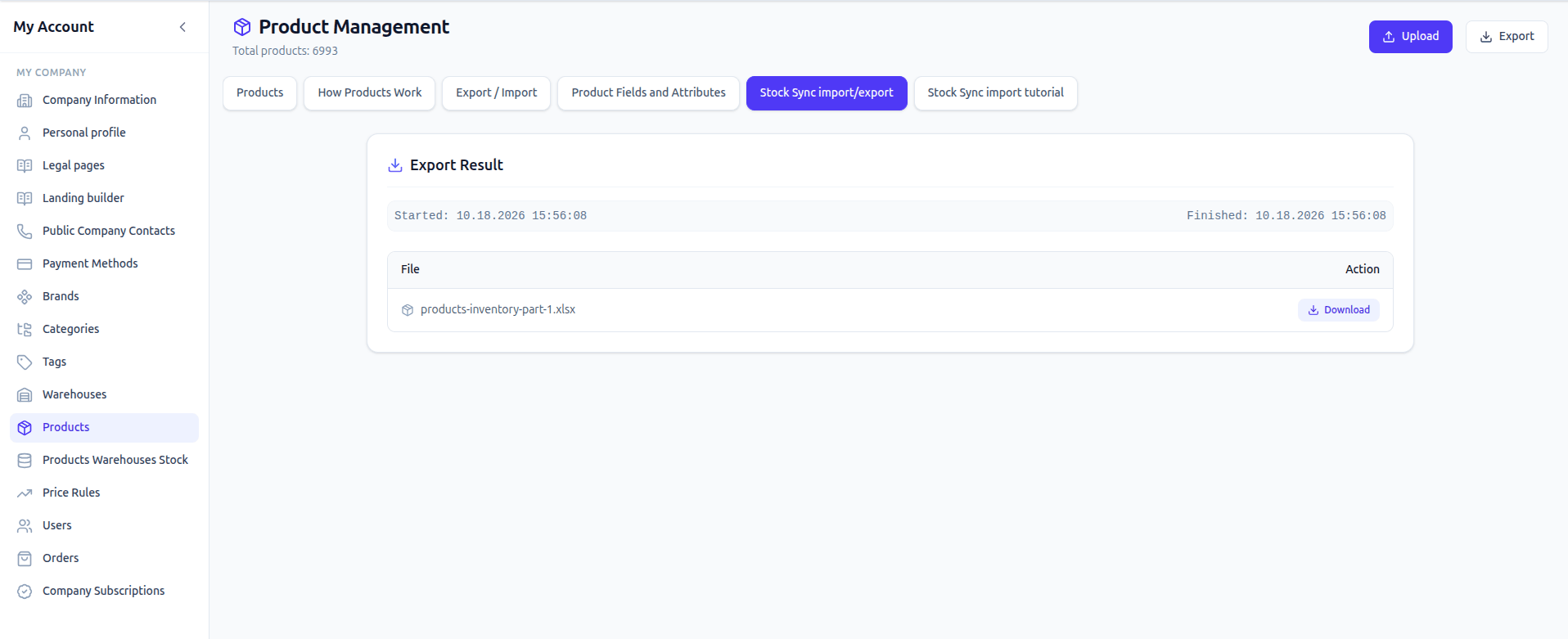
Here, you can upload a file containing your current inventory data. The maximum supported file size is 25 MB.
Your file must contain the following information:
- Product SKU
The unique SKU identifying each product. - Warehouse Stock Levels
A separate column for each warehouse, containing the available quantity of the corresponding product.
Each warehouse must have its own column in the file. The column header must contain the warehouse's External ID, exactly as configured in Sply24.
Example: Inventory file structure
| SKU | WH-001 | WH-002 | WH-003 |
|---|---|---|---|
| PROD-001 | 100 | 250 | 50 |
| PROD-002 | 75 | 120 | 30 |
Example only. WH-001, WH-002, and WH-003 represent the actual External IDs configured for your warehouses.
Stock quantity values must be numeric and can contain up to four decimal places.
Once you upload the file, Sply24 automatically processes the column headers and matches the External IDs with your registered warehouses. The system then updates the corresponding warehouse stock levels.
How total product stock is calculated
After importing the data, Sply24 recalculates the product's total stock by summing the inventory quantities across all warehouses, but only for products with warehouse stock synchronization enabled. Products without warehouse synchronization retain their existing main Stock value, which is not automatically recalculated based on warehouse inventory.
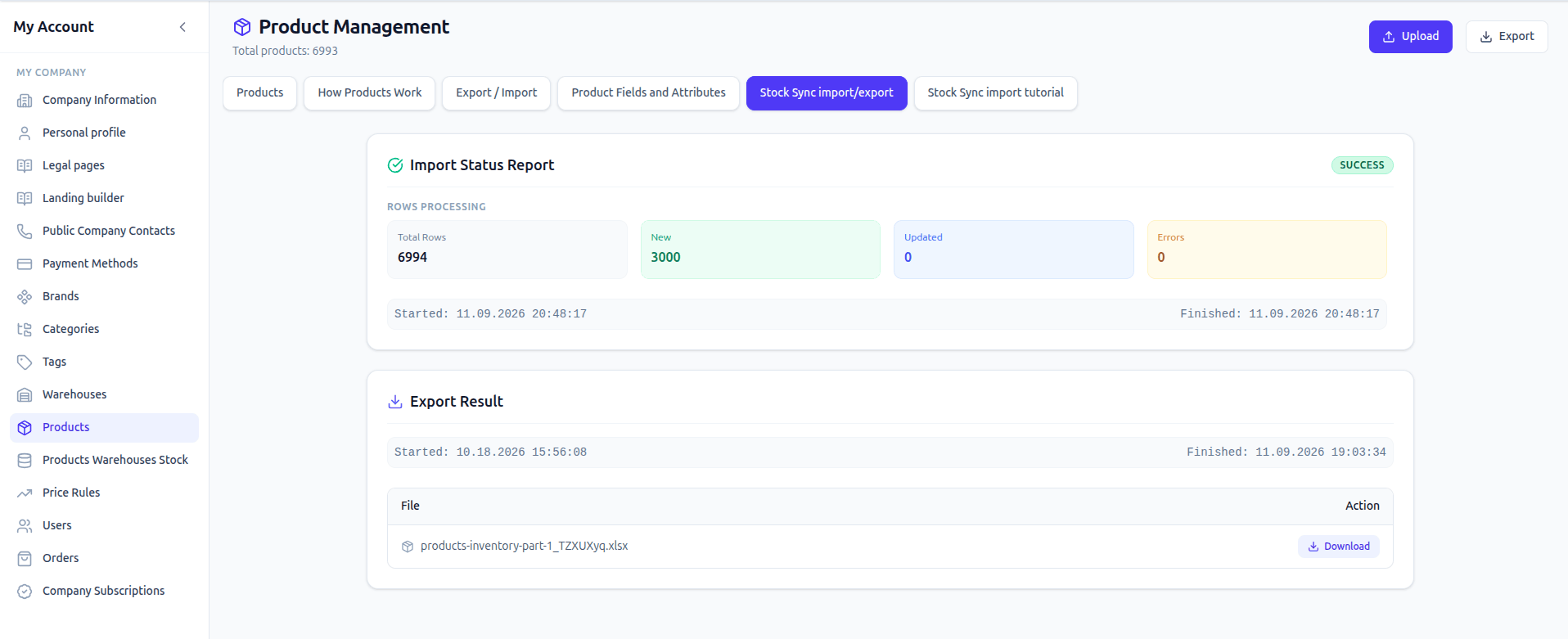
When the import process is complete, the system generates an import report showing the number of successfully updated rows and the number of rows containing errors.
This allows you to review the import results and identify any issues with your inventory data.
Manage Stock Levels for Individual Warehouses
In addition to bulk inventory imports, Sply24 allows you to manage stock levels for individual warehouses directly from a product's details page.
Open any product and navigate to the Product Warehouses section.
Here, you'll find a table displaying the warehouse name and the available stock quantity for that product at each location.
Product Warehouses
| Warehouse | Available Stock |
|---|---|
| Main Warehouse | 250 |
| European Warehouse | 150 |
| Total | 400 |
Illustrative example of warehouse stock quantities.
You can also manually adjust the stock quantity for each warehouse directly from this section. This is particularly useful when you need to correct individual stock levels or update inventory without uploading an entire CSV or Excel file.
View Inventory Across Multiple Warehouses
When managing multiple warehouses, it's important to have a convenient way to monitor stock levels across all locations.
Sply24 provides a dedicated overview for this purpose.
Navigate to the Products Warehouses Stock page to view your company's warehouse inventory in a single table.
The table uses the same format as the CSV and Excel inventory import functionality, allowing you to see product SKUs, product names, and stock quantities across all your warehouses.
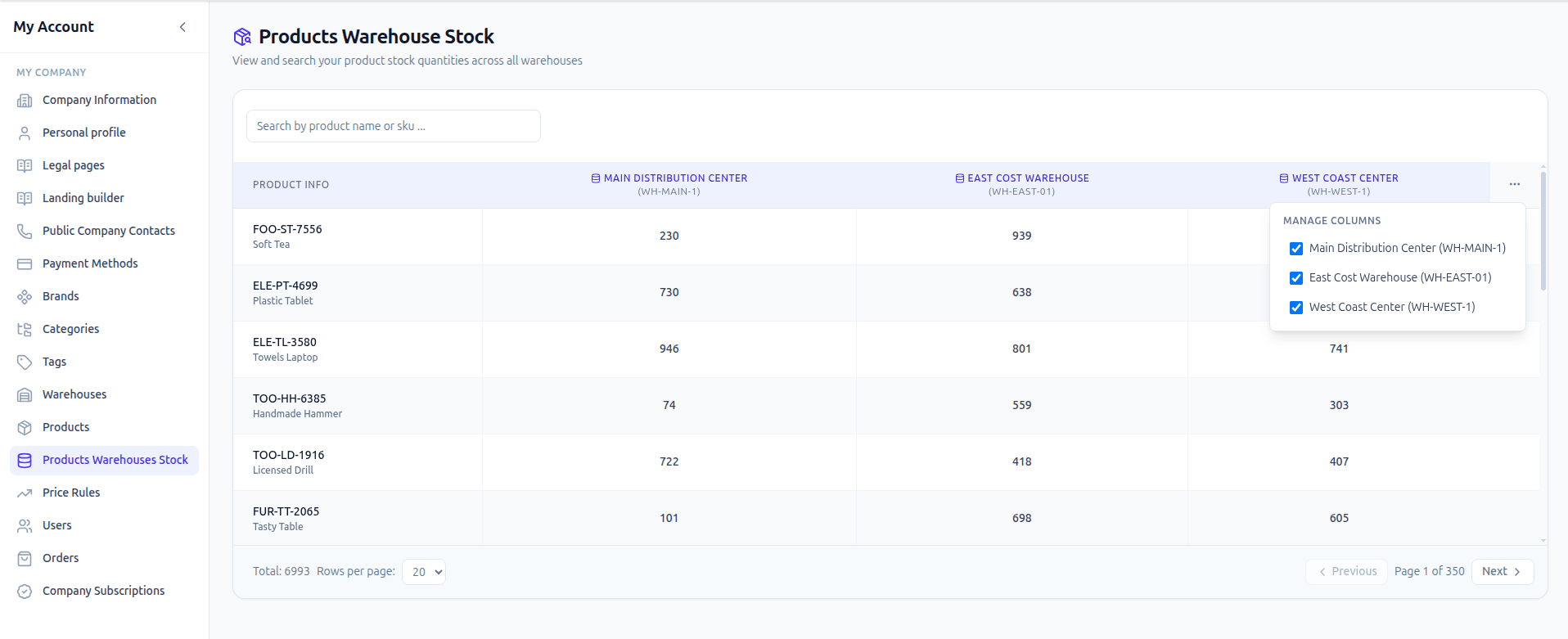
If your company operates multiple warehouses, the table can become quite wide. To make inventory management easier, Sply24 allows you to customize which warehouse columns are displayed.
Click the three-dot menu in the upper-right corner of the screen to choose which warehouses to show and which to hide.
This helps you keep the inventory overview organized and makes it easier to work with large product catalogs and multiple warehouse locations.
With Sply24, you can manage warehouse inventory, update stock levels using CSV and Excel files, connect external inventory management systems, and automate stock deductions when wholesale orders are placed.
Manage Your Wholesale Inventory With Sply24
All these features are available directly within your B2B wholesale platform, helping you manage products, inventory, and customer orders in one place.