How to Use the B2B Shopping Cart in Sply24
Before adding products to your cart, it is important to understand the product settings that directly affect how wholesale orders are placed. MOQ, Order Step, stock availability, and variable prices all influence the quantities and prices you see when preparing an order.
As a B2B wholesale platform, Sply24 provides more than a simple place to collect products. Its shopping cart continuously checks order quantities, monitors warehouse stock, and evaluates pricing conditions while you prepare your order.
The Shopping cart works as an automated system for wholesale orders: it validates product quantities, helps allocate stock between warehouses, and applies eligible prices without requiring you to calculate every condition manually.
Product Fields That Affect Ordering
Every product has several fields that directly influence the ordering process. Before adding products to your cart, make sure you understand what each of them means.
| Field | What it means | Example |
|---|---|---|
| MOQ (Minimum Order Quantity) | The minimum quantity a buyer must order. The system will not allow an order quantity below the MOQ set by the supplier. | If the MOQ is 100 units, you must order at least 100 units of that product. |
| Order Step | The quantity increment that must be followed when ordering a product. | With an MOQ of 100 and an Order Step of 10, valid quantities are 100, 110, 120, and so on. A quantity of 105 does not meet the required step. |
| Stock | The total stock quantity available for the product in the system. | The product's total stock is shown in the product table. When warehouse inventory is used, you can also select quantities from individual warehouses. |
| Price | Every product has a base price. Suppliers can also configure variable prices through pricing rules. | Additional price columns can be displayed in the product table. They are marked as Price Rule. |
Adding Products to the Shopping Cart
To start preparing an order, open the Products page and select the items you want to purchase.
-
1
Select the required products using the checkboxes next to each product.
-
2
Once at least one product is selected, the Add to Cart button becomes active.
-
3
Click Add to Cart. The selected products are added to your cart immediately.
All further order management takes place directly in the shopping cart. To open it, click the shopping cart icon in the upper-right corner of the website header.
Understanding the Shopping Cart Interface
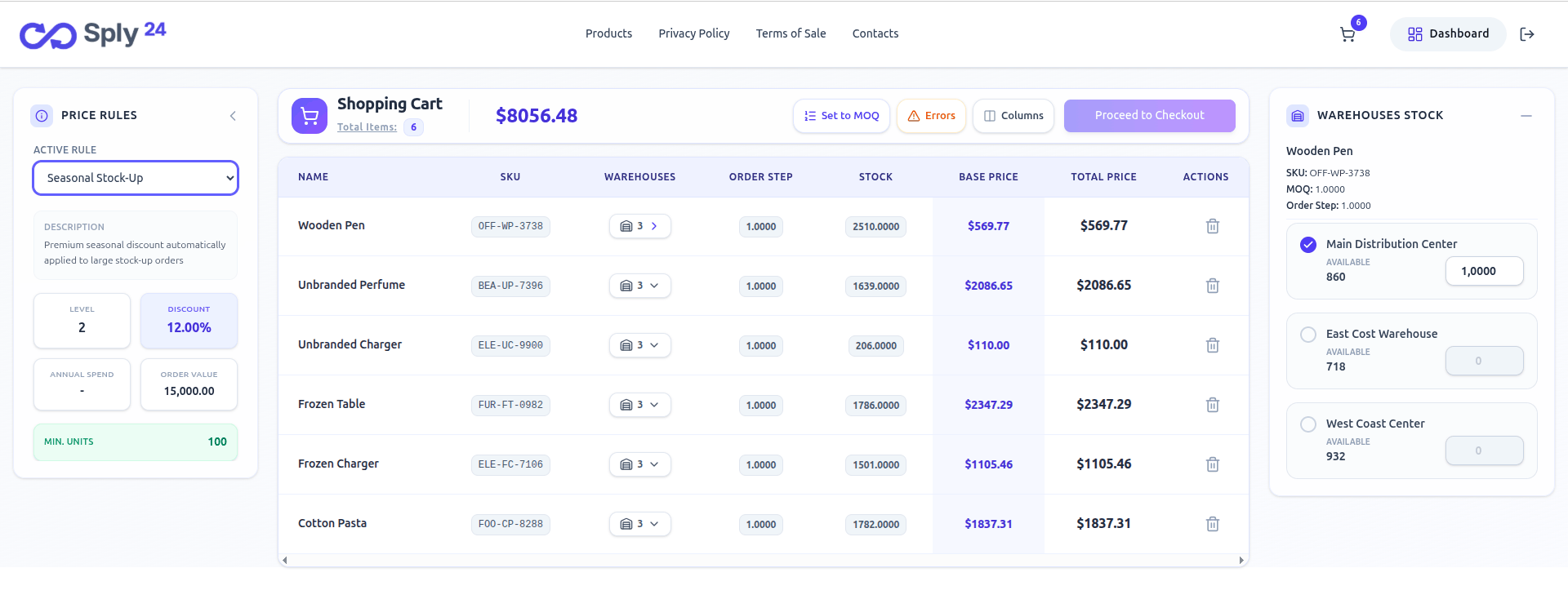
The shopping cart consists of three main components. Each one is responsible for a different part of the ordering process.
Central Product Table
Contains all selected products. It continuously monitors, validates, and adjusts your order lines.
Variable Pricing Panel
Collapsed by default on the left. Open it to review the supplier's pricing groups, activation conditions, and discounts.
Warehouse Stock Panel
Located on the right. It opens when you click a product's Stock field or the corresponding warehouse icon.
How the Shopping Cart Validates Product Quantities
The shopping cart automatically checks every product row and highlights fields in red whenever an action or correction is required. One of the main checks is the comparison between your requested order quantity and the MOQ defined by the supplier.
To change the order quantity, click the product's Stock field. If the product uses warehouse inventory management, a side panel will open and display the available warehouses and their stock levels.
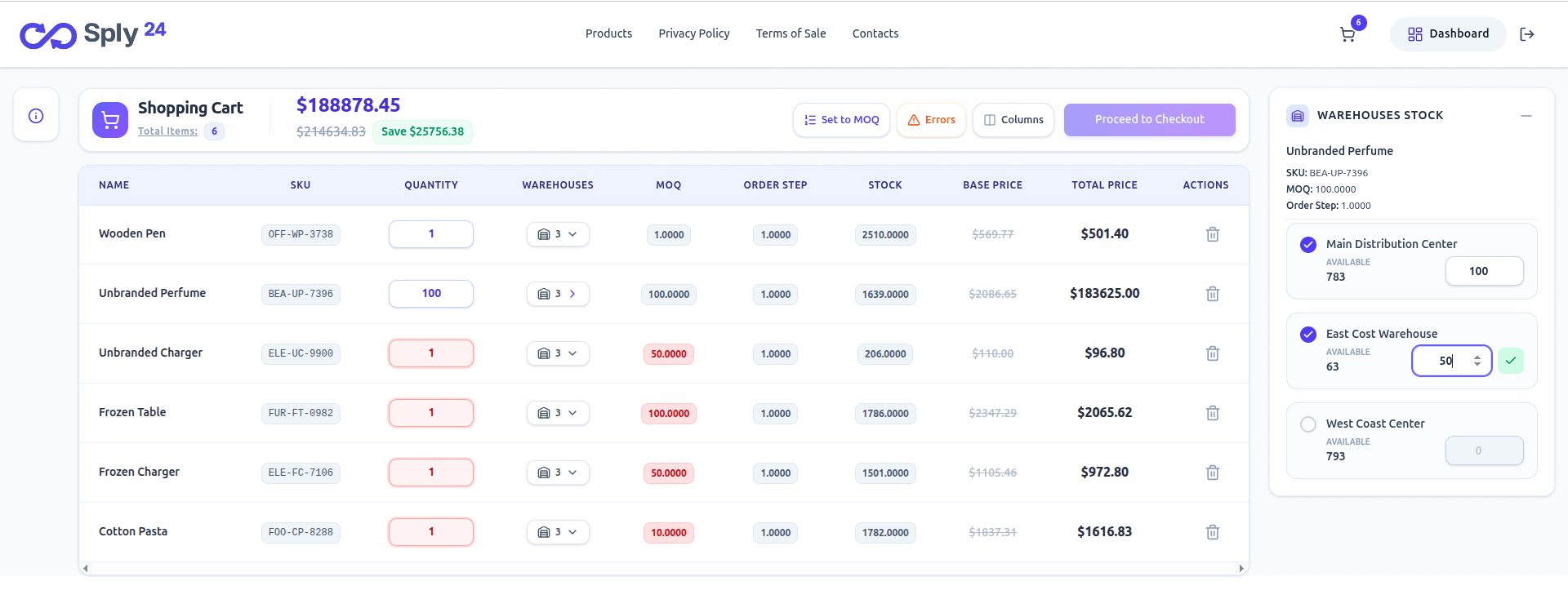
In this panel, you can:
- View each warehouse name.
- Check the available stock at each warehouse.
- Specify the quantity you want from each warehouse.
- Click Apply to confirm your selection.
If the quantity you enter does not match the supplier's Order Step, the system automatically adjusts it upward to the nearest valid quantity.
Suppose you add a product to your cart. By default, the system sets its quantity to 1. The supplier has configured an MOQ of 12 and an Order Step of 3. Warehouse 1 has 1,000 units available.
Accepted quantity
12 units
12 meets the MOQ and is a valid multiple of the Order Step.
Automatically adjusted
14 is not divisible by 3, so the system increases it to 15.
This way, the shopping cart helps ensure that every product quantity complies with the supplier's ordering requirements.
To learn more about warehouse stock management, see our guide: Warehouse Inventory Management System.
How Automatic Variable Pricing Works
Another important function of the shopping cart is automatic monitoring of pricing conditions and assigning the correct price to each product.
Click the indicator in the upper-left corner of the cart page to open the pricing groups panel. Pricing groups and their rules are configured by the supplier. Each pricing group can contain one or more rules.
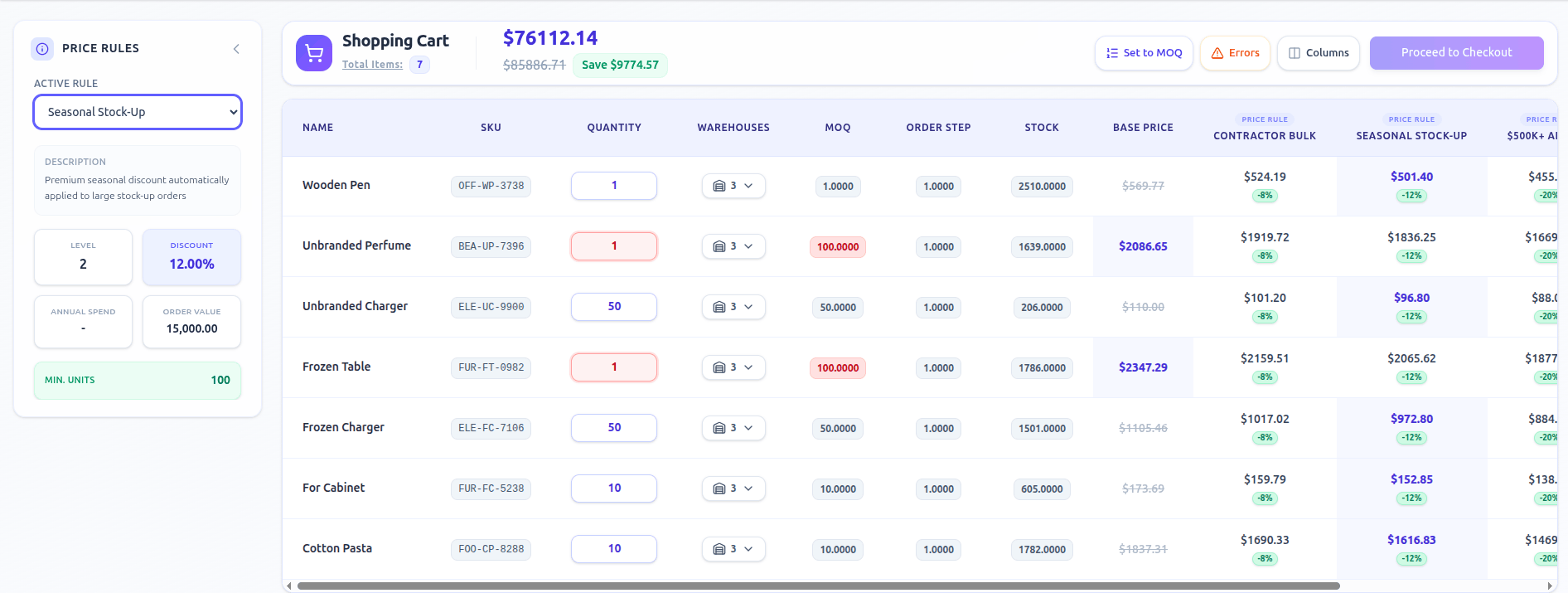
The shopping cart automatically checks these rules against the current contents of your cart. Whenever a rule's conditions are met, the corresponding price is applied to the relevant product.
Important: Suppliers can exclude individual products from pricing groups. Such products remain available only at their base price.
For more information about how suppliers configure pricing conditions, see our guide: B2B Pricing Strategies.
Example 1: A Discount Based on the Total Cart Value
Let's start with a simple example. A supplier creates a pricing group and applies it to all products without exclusions. The group contains the following rule:
Pricing rule
Apply a 10% discount when the total cart value reaches 10,000 or more.
Suppose your cart contains one product with a base price of 100 per unit. To meet the pricing condition, you need to order 100 units of this product.
You enter a quantity of 100, and the system automatically recalculates your cart using the discounted price. Instead of 10,000, you now see a total of 9,000.
Base total
10,000
100 units × 100
After 10% discount
9,000
Discount applied automatically
Example 2: Multiple Pricing Groups and Discounts
Now let's look at a more advanced example involving multiple pricing groups.
In addition to the first pricing group, the supplier creates a second group specifically for products in the Wholesale Sale category. This group contains the following rule:
Pricing Group 2
15%
Applies to products in this category when the order quantity reaches 500 units or more.
Let's see how the shopping cart handles both pricing groups at the same time.
The first product qualifies for a 10% discount
Your cart contains the original product with a quantity of 100. Its total base value is 10,000, so the first pricing rule is active and the product receives a 10% discount.
You add a second product from the Wholesale Sale category
You add one unit of this product to your cart. The system checks all applicable pricing rules and detects that the overall cart value already meets the 10,000 threshold. The 10% discount also applies to this second product.
You increase the second product's quantity to 500 units
The system checks all pricing rules again. It detects that the second product also qualifies for the Wholesale Sale pricing group, which offers a 15% discount on orders of 500 units or more. The 15% discount is now applied to this product.
As a result, your shopping cart contains two products with different discounts:
First product
Cart value pricing group
Second product
Wholesale Sale pricing group
This is how Sply24 automatically evaluates multiple pricing groups and applies the appropriate discounts to individual products based on the conditions configured by the supplier.
Shopping Cart in Sply24: An Automated System for Wholesale Orders
The Sply24 shopping cart is more than a simple place to collect products before checkout. It is an automated system that continuously monitors order quantities, validates supplier requirements, checks warehouse stock, and evaluates pricing conditions in real time.
Simplify Wholesale Ordering with Sply24
Use a dedicated B2B ordering environment where product quantities, warehouse stock, and pricing conditions are checked automatically as buyers prepare their orders.