Manage Your Wholesale Catalog with Sply24
This guide provides a detailed overview of the Sply24 product catalog and its management features. Learn how to organize your wholesale catalog, use advanced filters, customize the product data table, manage inventory, and efficiently perform bulk operations.
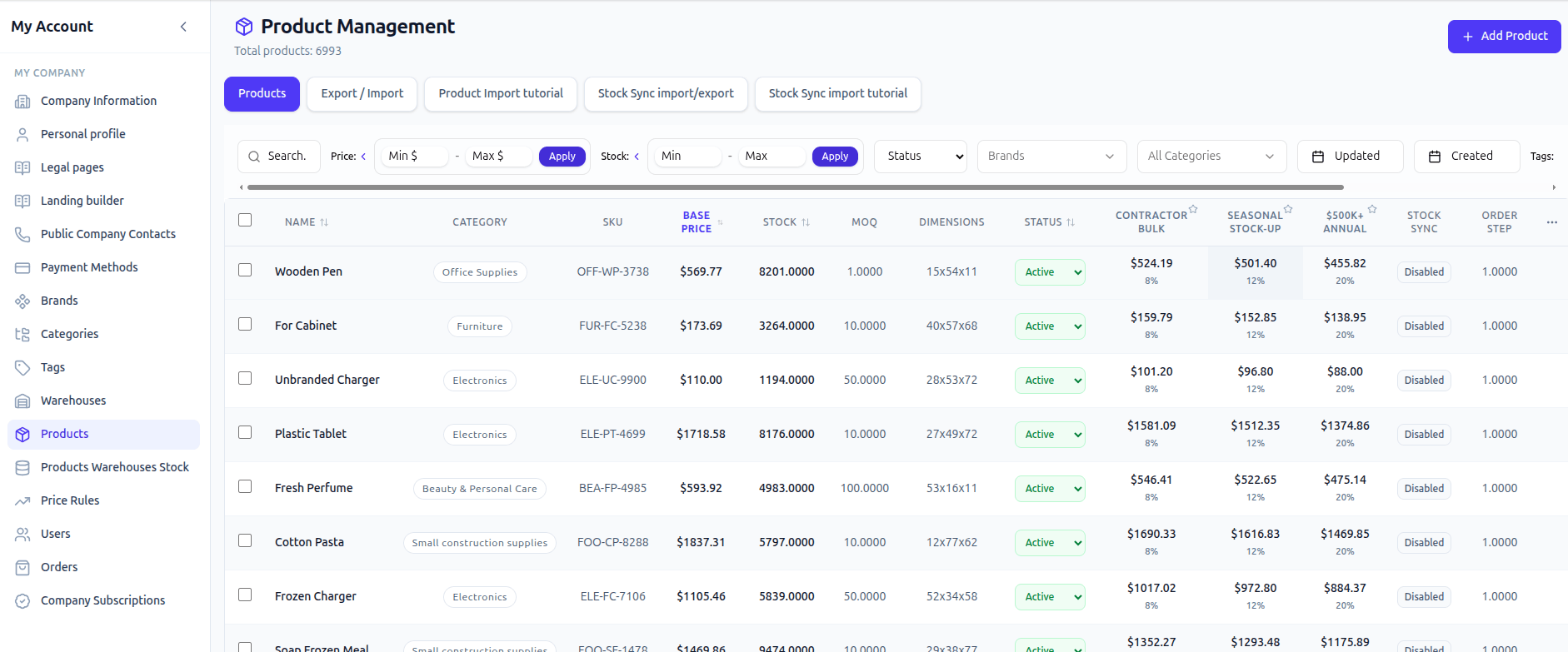
Once your products have been imported via a CSV/Excel file or connected through an integration with your existing inventory management system, you can start using Sply24's catalog management tools. Navigate to the Products tab in your dashboard. Here, you will find a tab navigation menu, an advanced filter block, and the main product data table below it.
Configuring the Data Table
The product model in Sply24 contains a vast amount of data, which is difficult to fit into a single view. To solve this, the system allows you to customize exactly which columns are displayed. Click the 3 dots button in the top right corner of the table to open the field list. By checking or unchecking the boxes, you can seamlessly control column visibility.
It is also important to note that the table features dynamic fields generated automatically by the system. In your Sply24 dashboard, you have two sections directly linked to products: Price Rules and Warehouses. Whenever you create a new price rule or a warehouse, the system instantly adds a new column to the product table representing that specific product-price or product-warehouse relationship.
You can also rearrange the display order of these columns to suit your workflow. Simply hover over a column name in the table header, click and hold the title, and drag it horizontally to your preferred position. Finally, use the pagination controls at the bottom of the table to select how many rows you want to display per page.
Advanced Filtering and Sorting
To find the exact selection of products you need to view or edit, Sply24 offers a robust set of filters located right above the table. Some inputs feature dynamic widths—for example, clicking the search bar expands it for comfortable text entry while smoothly shifting the rest of the block. The platform supports instant search by both Product Name and SKU.
Products filter features
- Base Price & Stock
- Product Status
- Brand Filter
- Category Hierarchy
- Updated at & Created at Dates
- Product Tags
Detailed filter behavior
- Base Price & Stock: Set minimum and maximum thresholds to filter items within a specific range. Both fields accept whole and fractional numbers. Note that for these two filters, you must click the confirm button to apply conditions.
- Status: A straightforward dropdown allowing you to filter by Active or Deactivated products.
- Brand: A smart input field with an integrated search by brand name.
- Category: A searchable dropdown that conveniently displays your full category hierarchy (which can be configured in the Categories section).
- Updated at Date: Opens a calendar allowing you to filter products updated between the selected dates.
- Created at Date: Opens a calendar allowing you to filter products created between the selected dates.
- Tags: Collapsed by default for a cleaner UI. Click to expand and select one or multiple product tags.
Except for Price and Stock, all filtering conditions are applied instantly. You can always use the Clear button to reset all filters in a single click. For sorting, simply hover over any supported column header and click to toggle between ascending and descending order.
Manual Editing
Once you have filtered your catalog, you can edit products either manually or in bulk. For manual editing, click the full-screen button in the top right corner of the table for a better workspace. Hover over any field in a product row—if the cursor changes, the field is editable. Double-click it to transform the cell into an input field, type your new value, and press Enter (or click outside) to save.
Products Bulk Operations
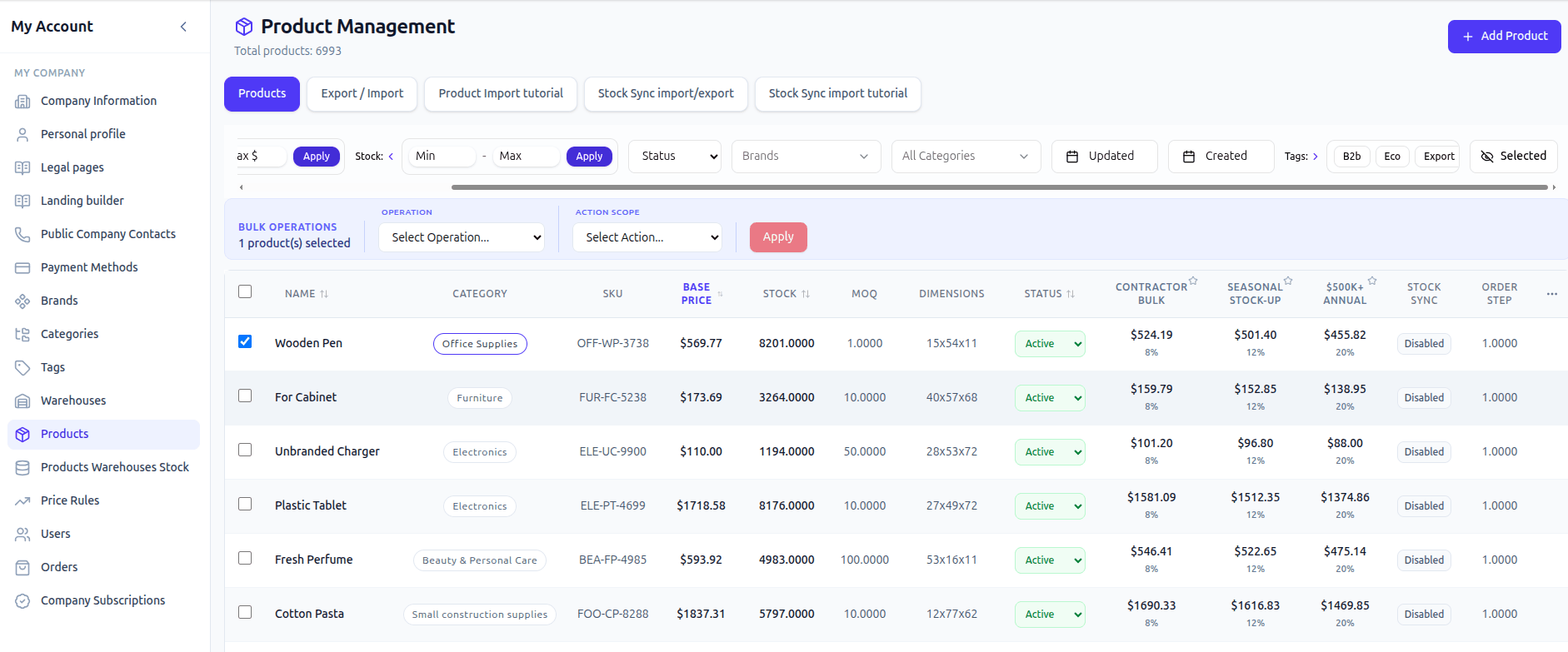
To execute bulk operations, check the box at the beginning of any product row. This triggers a hidden bulk action panel.
In the first drop-down list—operations—you need to select the type of operation. The system supports the following types:
- Status update
- Stock Sync
- Remove products
- Price Rules
The second select element contains the action type, there are always 3 actions in the Sply24:
- Selected objects
- Filtered selection
- All products
Scope details: Selected objects applies actions exclusively to checked items. Filtered selection applies changes to all items matching active filters. All products applies actions globally to every item in the system.
The following select menus appear dynamically, depending on the selected operation. For example, when choosing to update a product's status, an additional select menu appears with options to either activate or deactivate it.
Click "Apply" for the changes to take effect.
This streamlined process ensures you can manage massive B2B inventories efficiently.