Warehouse Inventory Synchronization: How It Works in Sply24
In this guide, we'll explain how warehouse inventory synchronization works in Sply24. You'll learn how to enable synchronization for products, manage stock availability across multiple warehouses, and understand how inventory is updated when customers place wholesale orders.
As a B2B wholesale platform, Sply24 helps businesses manage product availability across multiple warehouses, streamline wholesale ordering, and maintain accurate inventory levels throughout the purchasing process.
Understand How Warehouse Inventory Works When Customers Place Orders
After setting up your warehouses and importing stock levels, the next step is to configure how Sply24 should use warehouse inventory when customers place orders.
In Sply24, products can operate in one of two inventory modes:
Without Warehouse Synchronization
Stock availability is managed through the main product Stock field.
With Warehouse Synchronization
Stock availability is managed separately for each warehouse.
Let's take a closer look at how these two modes work.
Products Without Warehouse Inventory Synchronization
If a product does not participate in warehouse inventory management, Sply24 uses the product's main Stock field to determine its availability.
When a customer places an order, the system automatically deducts the ordered quantity from this field.
What happens to warehouse stock?
Individual warehouse stock levels remain unchanged. Customers see and select quantities based on the product's main Stock field.
Products With Warehouse Inventory Synchronization
If a product participates in warehouse inventory management, the main Stock field is no longer available to customers when selecting quantities in the shopping cart.
Instead, customers can see how many units of the product are available at each warehouse.
They must select a specific warehouse from which they want to receive the required quantity.
Example: Product availability by warehouse
Illustrative example of how customers can see stock availability at different warehouses.
Once the customer places an order, Sply24 automatically deducts the ordered quantity from the inventory of the selected warehouse.
This means that warehouse stock levels are updated automatically as orders are placed, helping you maintain accurate inventory information across your locations.
Enable Warehouse Stock Synchronization for Products
Now that you understand how the two inventory modes work, let's look at how to enable warehouse stock synchronization.
Sply24 allows you to enable synchronization for individual products or apply the change to multiple products using bulk actions.
To get started, navigate to the Products tab and select at least one product using the checkbox.
This will open the bulk actions menu. Select Stock Synchronization from the available actions.
Next, choose which products the operation should apply to. Sply24 supports three options:
All Products
Apply the operation to every product in your company.
All Filtered Products
Apply the operation to all products matching your current filters.
Selected Products
Apply the operation only to the products you have selected.
After choosing the desired scope, select Enable Synchronization.
Finally, click Apply to save your changes.
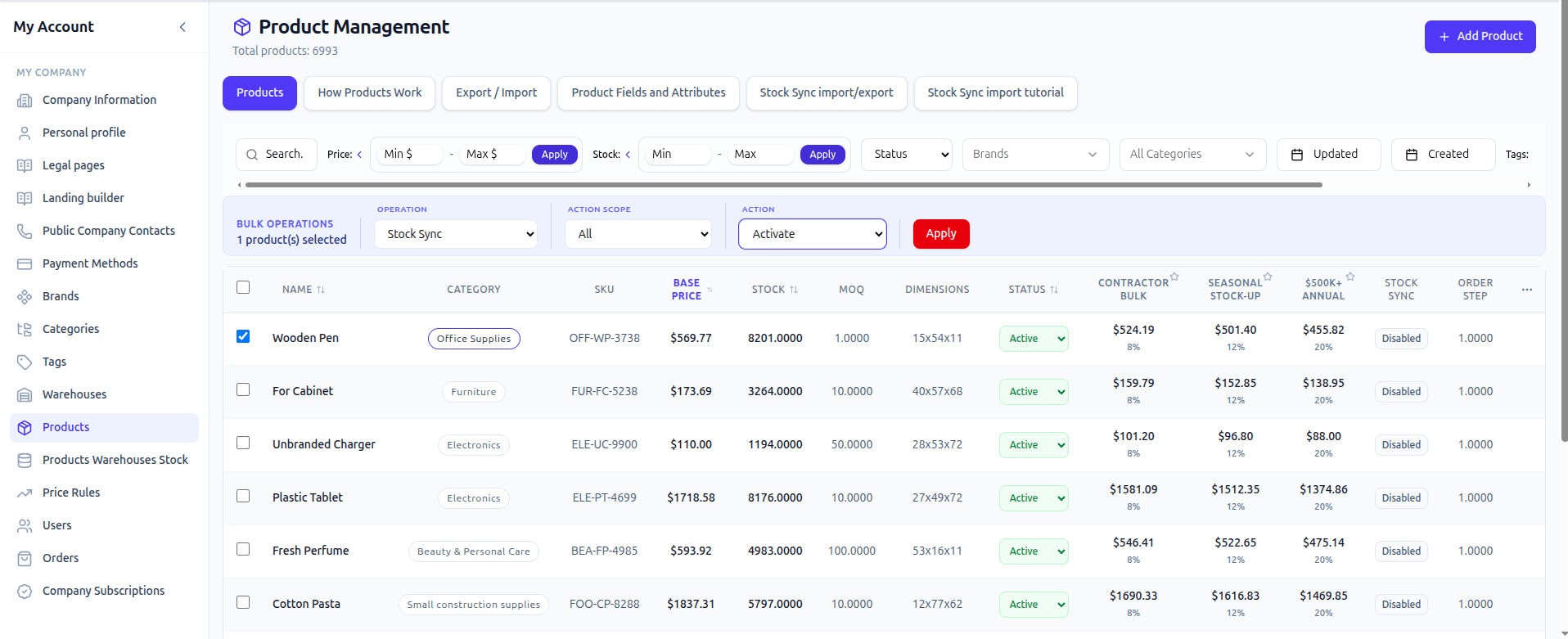
Synchronization enabled!
Warehouse stock synchronization is now enabled for the selected products. Sply24 will use individual warehouse stock levels when customers order these products.
What Customers See When Ordering Products From Different Warehouses
Once warehouse synchronization is enabled for a product, the ordering process changes automatically for that product.
When customers add it to their shopping cart, they no longer see the standard Stock field.
Instead, they see the available quantities at each warehouse.
Customers can then select the warehouse that can fulfill their order and specify the required quantity based on its available stock.
How the ordering process works
View warehouse availability
The customer sees how many units are available at each warehouse.
Select a warehouse
The customer chooses the warehouse from which the product will be supplied.
Specify the quantity
The customer selects the required quantity based on available stock.
Stock is automatically updated
After the order is placed, Sply24 deducts the ordered quantity from the selected warehouse's inventory.
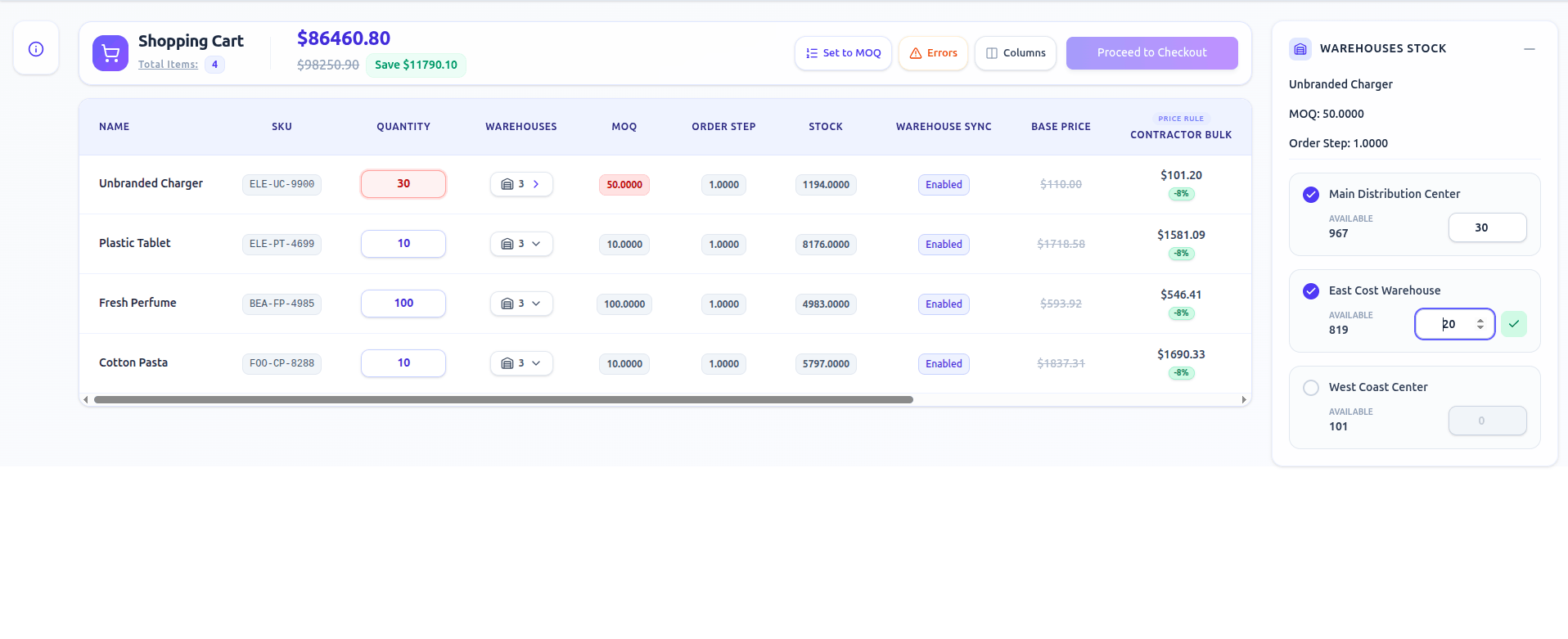
Meet Minimum Order Quantities Faster with Set to MOQ
When customers add products to their shopping cart, Sply24 automatically checks whether the ordered quantity meets the Minimum Order Quantity (MOQ) defined by the seller.
If the quantity of a product is below its required MOQ, the system automatically highlights that product in the shopping cart, making it easy for customers to identify which items need adjustment before placing an order.
To make the ordering process faster, Sply24 provides a dedicated Set to MOQ button. When clicked, the system automatically adjusts the quantities of products that do not meet their MOQ requirements.
The adjusted quantity takes into account both the product's MOQ and its Order Step setting:
- If the MOQ is divisible by the Order Step, the quantity is set exactly to the MOQ.
- If the MOQ is not divisible by the Order Step, the system rounds the quantity up to the next valid multiple of the Order Step.
Example: How Set to MOQ calculates quantities
Example 1: MOQ is divisible by Order Step
MOQ
12
Order Step
4
Final Quantity
12
Example 2: MOQ is not divisible by Order Step
MOQ
10
Order Step
4
Final Quantity
12
Illustrative examples of how Sply24 adjusts product quantities to meet both MOQ and Order Step requirements.
Automatic Warehouse Selection and Stock Reservation
For products with warehouse stock synchronization enabled, the Set to MOQ action does more than simply update the quantity field.
After calculating the required quantity, Sply24 automatically selects the first warehouse in the available warehouse list that has sufficient stock to fulfill the adjusted quantity. The required quantity is then reserved from that warehouse's inventory.
Customers are not limited to the automatically selected warehouse. They can always manually choose another warehouse from which they prefer to receive the product, subject to its available stock.
Simplify Wholesale Ordering with Set to MOQ
The Set to MOQ feature helps customers quickly correct quantities that do not meet seller requirements, while automatically considering order steps and warehouse availability. This reduces manual adjustments and makes the wholesale ordering process faster and more convenient.
This gives your customers a clear view of product availability across your warehouses while helping your business maintain accurate stock levels throughout the ordering process.
Simplify Warehouse Inventory and Wholesale Ordering with Sply24
With Sply24, you can keep inventory synchronized across multiple warehouses, maintain accurate stock availability, and simplify the ordering process for your customers. Automated inventory updates and flexible warehouse management help your business handle wholesale orders more efficiently while keeping product availability clear and up to date.